How to Fix Overexposed Photos in Lightroom Mobile
Photography is a combination of creativity and technical skill. Even professional photographers often face challenges with exposure. Some photos come out overexposed, appearing too bright with washed-out details, while others are underexposed, looking too dark with lost shadows.
Fortunately, Lightroom Mobile provides powerful tools to fix these issues, enabling photographers to achieve professional-quality images directly on their smartphones. In this guide, we will explore step-by-step methods to correct exposure problems and enhance your photos in 2025.
What Are Overexposed and Underexposed Photos?
Before diving into editing techniques, it’s important to understand the difference:
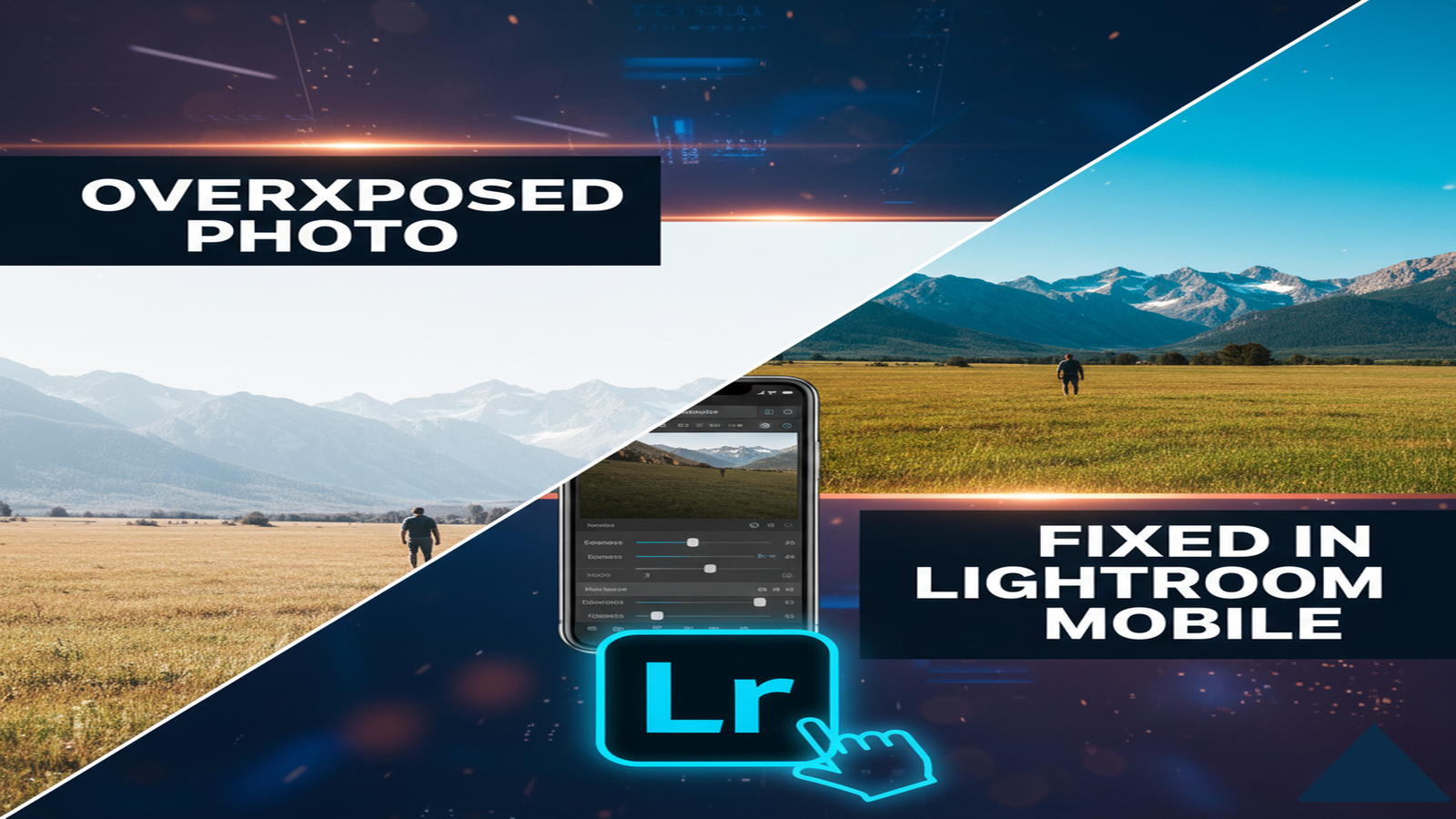
- Overexposed Photos: These images are too bright, causing highlights to lose detail. Common signs include washed-out skies, bright areas without texture, or a generally flat look.
- Underexposed Photos: These images are too dark, making shadows dominate the scene. Important details in dark areas may be lost, and the overall image may appear gloomy.
Both issues are common in mobile photography, especially in challenging lighting conditions, and can negatively impact the overall quality of your work.
Tools in Lightroom Mobile for Exposure Correction
Lightroom Mobile offers multiple tools to adjust exposure professionally:
- Highlights & Shadows – Controls bright and dark areas separately.
- Whites & Blacks – Fine-tunes extreme bright and dark points.
- Tone Curve – Offers precise control over light, dark, and midtones.
Step-by-Step Guide to Fix Overexposed Photos
1. Start with Exposure Adjustment
- Open the photo in Lightroom Mobile.
- Drag the Exposure slider left to reduce brightness.
- Be cautious not to make the photo too dark.
2. Recover Highlights
- Reduce the Highlights slider to bring back details in bright areas.
- This is especially useful for skies or reflective surfaces.
3. Adjust Whites
- Move the Whites slider slightly to restore the brightest parts without clipping.
4. Add Contrast
- Increase Contrast carefully to bring back depth and dimension.
- Overexposed photos often look flat, and contrast restores structure.
5. Fine-Tune with Tone Curve
- Use the Tone Curve to slightly lower the bright end and maintain midtones.
- This step helps achieve professional cinematic results.
6. Apply Selective Adjustments if Needed
- Use brush or radial mask to darken overly bright areas selectively.
- Ensures natural look without affecting the rest of the image.

Step-by-Step Guide to Fix Underexposed Photos
1. Increase Exposure
- Slide Exposure to the right to brighten the overall image.
- Avoid overdoing it to prevent noise in shadows.
2. Recover Shadows
- Increase Shadows slider to reveal hidden details in dark areas.
- Perfect for portraits or nighttime photos where shadow detail is critical.
3. Adjust Blacks
- Lightly increase Blacks slider to lift the darkest areas without losing contrast.
4. Enhance Highlights
- Slightly increase Highlights to balance brightness and avoid flatness.
5. Use Tone Curve
- Lift the midtones to brighten overall image while maintaining natural contrast.
6. Apply Noise Reduction
- Underexposed images brightened in post-processing may show noise.
- Use Noise Reduction slider in Lightroom Mobile to maintain smooth texture.
Tips for Maintaining Natural Colors
Exposure correction often affects colors. Here’s how to keep them natural:
- Adjust White Balance: Correct any color shifts caused by exposure changes.
- HSL Panel: Fine-tune individual color channels for natural skin tones and vivid landscapes.
- Avoid Over-Saturation: Keep vibrance and saturation moderate to prevent unnatural tones.
- Use Selective Edits: Apply adjustments to specific areas instead of the whole image for precise color control.
- Leverage Presets Wisely: Use Lightroom Mod APK presets to save time while maintaining realistic colors.
- Preview Across Devices: Check your edits on multiple screens to ensure colors remain natural and consistent.
If you want to know which mobile photo editing apps are leading in 2025, read this comprehensive list.
Using Presets to Correct Exposure
Some Lightroom Mobile presets are specifically designed to fix exposure issues:
- Highlight Recovery Presets: Ideal for overexposed skies and bright areas.
- Shadow Lift Presets: Perfect for underexposed portraits or indoor shots.
- Balanced Presets: Correct both highlights and shadows for a natural look.
Presets save time and maintain consistency, especially for Instagram feeds, travel photography, and professional portfolios.
Enhancing Bright Photos Without Losing Details in Lightroom Mobile
Overly bright or overexposed photos can lose crucial details, but Lightroom Mobile makes it easy to restore them. Start by adjusting the Exposure slider to bring brightness to a balanced level. Use the Highlights and Shadows tools to recover lost details in bright or dark areas. Fine-tune Contrast and Whites for natural depth without making the image look artificial.
The Selective Editing feature allows you to correct specific areas precisely. By carefully balancing these adjustments, Lightroom Mobile lets you enhance bright photos while preserving textures, colors, and fine details for a professional finish.
Preventing Exposure Issues During Shooting
While Lightroom Mobile can fix most exposure issues, preventing them at the shooting stage is ideal:
- Use Grid Lines: Helps align subjects and horizon for balanced lighting.
- Lock Focus & Exposure: On mobile cameras, tap and hold to lock AE/AF.
- Shoot in RAW: RAW photos retain maximum data, allowing better post-processing.
- Avoid Harsh Lighting: Shoot during golden hour or use reflectors/filters.
- Bracketing: Take multiple shots with varying exposure for best results.
Benefits of Correcting Exposure in Lightroom Mobile
- Professional Look: High-quality adjustments rival DSLR post-processing.
- Efficiency: Mobile editing allows quick turnaround for social media and clients.
- Versatility: Works for portraits, landscapes, street photography, and more.
- Learning Opportunity: Understanding exposure enhances overall photography skills.
Conclusion
Correcting overexposed and underexposed photos is essential for professional-quality photography. With Lightroom Mobile, both beginners and professionals can easily restore balance, recover details, and maintain natural colors. By mastering exposure sliders, highlights, shadows, tone curves, and selective adjustments, photographers can transform ordinary photos into stunning visuals. Combining these techniques with RAW shooting, careful lighting, and thoughtful presets ensures that every photo reaches its full potential.