Pro Tips to Color Grade Photos in Lightroom Mod APK
Color grading has become an essential skill for photographers, influencers, and content creators who want their images to stand out in 2025. With Lightroom Mod APK, you can achieve professional-grade color grading on mobile devices without paying for a subscription. This guide will walk you through the techniques, tools, and step-by-step process to color grade your photos like a professional.
Why Color Grading Is Important
Color grading is not just about making images vibrant; it’s about setting the mood, tone, and style of your photography. Correct color grading can:
- Enhance storytelling in your photos
- Improve consistency across social media feeds
- Highlight subjects and key details
- Create cinematic or professional looks for portfolio.
Steps for color grading photos
With the Mod APK, you get access to premium tools like HSL, Tone Curve, Split Toning, and advanced presets, which help achieve high-quality results on mobile devices.
Step 1: Start With a Clean Edit
Before color grading, it’s crucial to correct basic exposure and lighting.
- Adjust Exposure to set the base brightness.
- Fine-tune Contrast to add depth to shadows and highlights.
- Correct White Balance to remove unwanted color casts.
- Apply Noise Reduction if necessary, especially in low-light images.
Starting with a clean base ensures your color grading will look natural and professional.
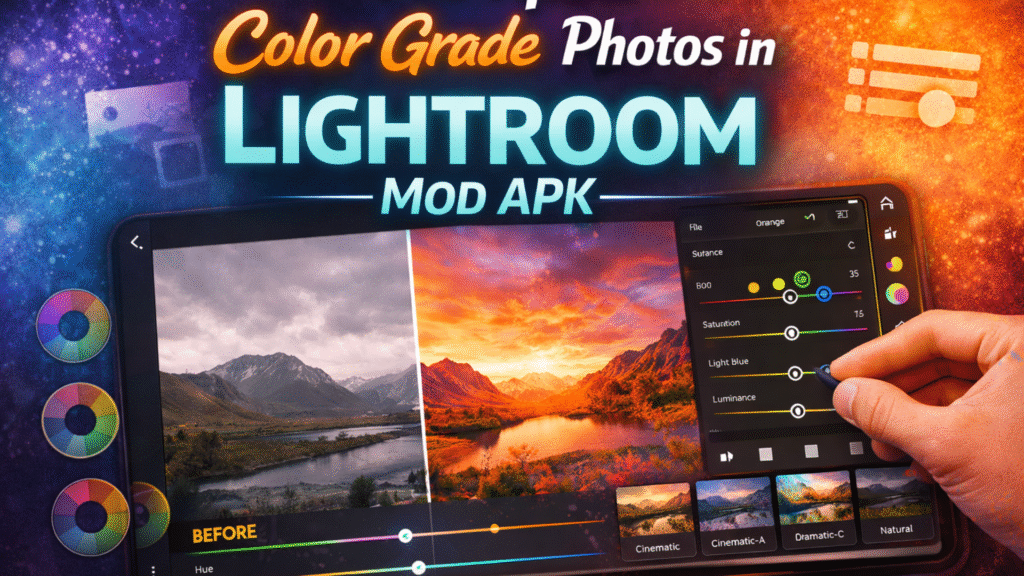
Step 2: Use HSL (Hue, Saturation, Luminance) Controls
HSL is one of the most powerful tools in Lightroom for precise color grading:
- Hue: Shift colors to adjust tones. For example, change green leaves to teal or orange skies to golden.
- Saturation: Increase or decrease intensity of specific colors to make them pop.
- Luminance: Adjust brightness of each color channel for depth and emphasis.
Tip: Avoid over-saturating; subtle adjustments often look more professional.
Step 3: Master the Tone Curve
Tone Curve allows you to refine shadows, midtones, and highlights precisely:
- Highlights: Brighten or soften highlights for dramatic or soft effects.
- Midtones: Control the overall light in your image.
- Shadows: Deepen or lighten shadows for contrast and mood.
Using an S-shaped curve is a classic technique to increase contrast while keeping details intact.
Step 4: Apply Split Toning
Split toning lets you add specific colors to the highlights and shadows separately:
- Add warm tones to highlights for a golden look.
- Add cool tones to shadows for cinematic effects.
- Adjust balance slider to decide which color dominates.
Split toning is excellent for creating a consistent cinematic style across your portfolio.
Step 5: Use Presets for Speed and Consistency
Lightroom Mod APK allows you to create and save custom presets or use premium pre-built ones:
- Apply a preset to multiple images for a consistent feed style.
- Modify presets to match your photo’s lighting and subject.
- Combine presets with manual HSL or Tone Curve adjustments for professional results.
Presets save time and ensure your brand or style stays consistent.
Step 6: Fine-Tune with Advanced Tools
- Selective Editing: Adjust specific areas like skin, sky, or foreground.
- Gradient Filters: Apply color effects gradually across skies or landscapes.
- Radial Filters: Highlight subjects or create a vignette effect.
- Sharpening & Clarity: Enhance textures without losing natural look.
These tools help you perfect every detail and maintain professional quality.
Tips for Professional Color Grading
Keep it subtle:
Professional grading often involves subtle shifts, not extreme effects.
Check multiple devices
Ensure colors look good on phones, tablets, and monitors.
Consistency
Use similar color grading across all images in a series or feed.
Experiment
Don’t hesitate to try creative color schemes like teal-orange or cinematic styles.
Avoid clipping
Ensure highlights and shadows retain detail for a natural look.
Why Lightroom Mod APK Is Perfect for Mobile Color Grading
Lightroom Mod APK offers powerful tools and premium features that make mobile color grading simple and professional. With AI enhancements, presets, and full control over colors, even beginners can achieve stunning results on the go.
- Premium Tools Unlocked: No subscription needed for HSL, Tone Curve, Split Toning, or selective adjustments.
- RAW Editing: Maintain maximum detail and color accuracy.
- Unlimited Presets: Save and reuse custom looks without restrictions.
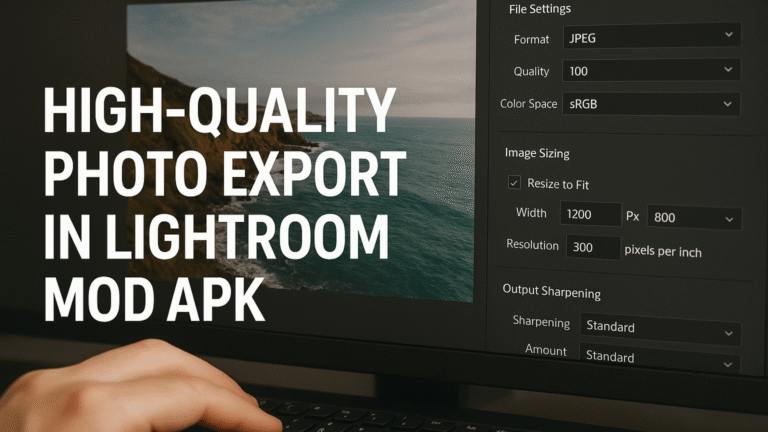
- High-Quality Export: Save color-graded photos in high resolution for social media or print.
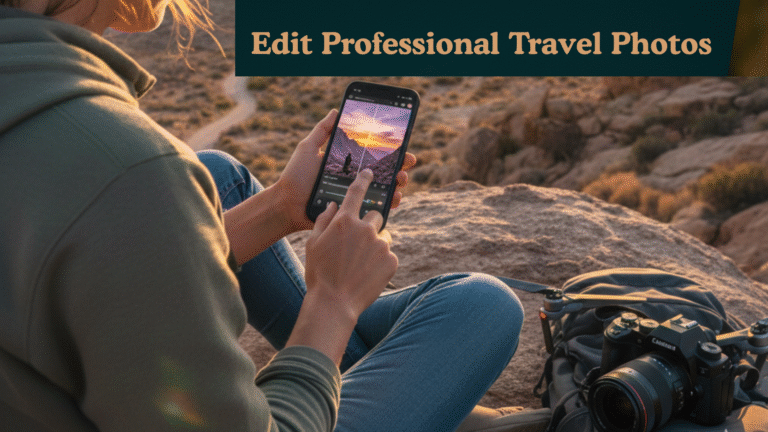
With these features, you can achieve desktop-level color grading results directly on your mobile device. Also discover tips for editing stunning travel photos on your mobile.
Common Mistakes to Avoid While Color Grading
Color grading can dramatically enhance a photo, but small mistakes can ruin the final look of your images. Avoid these common errors to ensure professional results:
- Over-Saturation: Excessive color intensity can make images look unnatural. Keep tones balanced.
- Ignoring Skin Tones: Skin tones should remain natural; altering them too much can look unrealistic.
- Blindly Using Presets: Presets are helpful but may not suit every photo. Adjust settings to fit each image.
- Inconsistent Color Profiles: Using different profiles across photos can lead to mismatched colors, especially for a series or social media feed.
- Neglecting Shadows & Highlights: Failing to adjust shadows or highlights can flatten the image or lose detail.
By avoiding these mistakes, you can maintain consistent, professional, and visually appealing color grading across all your photos.
Conclusion
Color grading transforms ordinary photos into professional, eye-catching images. Using Lightroom Mod APK, mobile photographers and content creators can access premium tools, advanced HSL and Tone Curve controls, and high-quality export options without paying for a subscription. By following the steps above clean edits, HSL adjustments, tone curve refinement, split toning, and using presets. You can create stunning, consistent, and professional images that stand out on social media, portfolios, and client projects in 2025.